
 Business Plans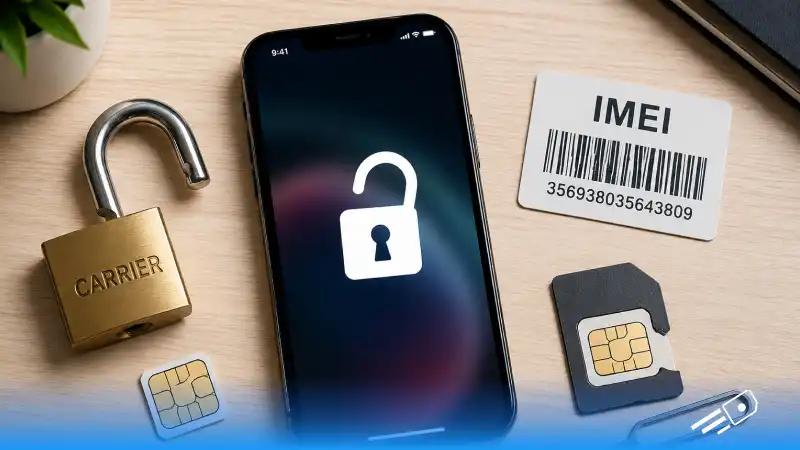
You've picked up a new phone, popped in your SIM, and got hit with a message during your attempt to unlock iPhone - “it won’t work”. Or maybe you're trying to travel and realised your iPhone is locked to your home carrier. Either way - frustrating. But before you do anything, it helps to understand what kind of lock you're dealing with, because the fix depends entirely on that.
There are two very different types of locked iPhones, and people mix them up constantly. This guide covers both, so wherever you're starting from, you'll find what you need here.
The Two Different Types of Locked iPhones
- SIM locked iPhone - also called carrier-locked - means your device is tied to a specific mobile network and it'll only accept SIM cards from that carrier.
- iPhone locked to owner - this is a security lock, either a passcode, Face ID, or an Activation Lock tied to an Apple ID and is a completely separate issue from carrier locking.


Why Is My iPhone SIM Locked in the First Place?

When you buy a phone on a contract or at a subsidised price through a carrier, that carrier locks the device to their network to recoup the cost of the discount they gave you. This is called a SIM locked iPhone. It is tied to a specific mobile operator and can only use data plans from that network.
Once your contract ends - or in some cases, once you've paid off the device - you're entitled to request an unlock. Most carriers will do this for free.
The problem is when people don't realise their phone is locked until they're standing in an airport trying to put in a local SIM - which is, genuinely, one of the most avoidable travel headaches there is.
How to Carrier Unlock an iPhone

The only legitimate way to carrier unlock iPhone is through your network provider. There's no shortcut here that Apple approves of and anything claiming to unlock your device through software alone is almost certainly either ineffective or a scam.
Here's how the process works:
Step 1 - Check your eligibility
Most carriers require your contract to be complete, your account to be in good standing, and the device to have been active on their network for a minimum period (usually 30–90 days). Check your carrier's specific policy before requesting.
Step 2 - Contact your carrier
This can be done completely online using your network account portal, via the carrier’s app or over live chat and customer support. Be sure to have your account details and device info ready beforehand.
Step 3 - Wait for confirmation
After contact, most carriers will confirm the unlock within a few days (some even only a day) and you will receive an email or notification regarding it.
Step 4 - Complete the unlock on your iPhone
Once confirmed, back up your iPhone and either restore it via iTunes/Finder, or simply insert a SIM from a different carrier and follow the on-screen prompts. Your phone will recognise the unlock and complete the process automatically.
iPhone Locked to Owner: How to Unlock It

This is a different situation entirely and it's worth being upfront about what's possible here. If you've bought a second-hand iPhone and it's asking for a previous owner's Apple ID, or if you've forgotten your own passcode, the options vary significantly depending on the circumstance.
If you forgot your own passcode:
Apple provides an official recovery path for this. If you have a trusted device or phone number linked to your Apple ID, you can reset your passcode through the "Forgot Passcode" option on the lock screen (available on iOS 17 and later). Alternatively, you can erase and restore the device via iTunes or Finder on a computer — though this wipes everything, so it's a last resort if you don't have a recent backup.
If the iPhone is locked to a previous owner's Apple ID (Activation Lock):
This is significantly harder to resolve without the original owner. Activation Lock is Apple's anti-theft system designed to make a stolen or lost iPhone useless to anyone who doesn't have the linked Apple ID credentials. The correct path here is:
- Contact the seller and ask them to remove the device from their Apple ID at appleid.apple.com
- If that's not possible (lost contact, bought from a market), contact Apple directly with proof of purchase. They can review the case, though there are no guarantees
- If you bought the device through a legitimate retailer and have a receipt, Apple Support is your best route
There are services online claiming to offer an "iOS unlocker" that bypasses Activation Lock. The honest answer is that legitimate Activation Lock bypass without the original Apple ID is not possible through any approved method. Be very cautious of anything claiming otherwise.
How to Check If Your iPhone Is Unlocked Before Buying

If you're purchasing a second-hand iPhone, whether from a marketplace, a private seller, or a refurbished retailer, checking its lock status before handing over money is non-negotiable. Here's how:
On the device itself: Settings > General > About > Carrier Lock. "No SIM restrictions" means it's unlocked. Anything else means it's tied to a specific network.
If you can't access the device: Ask the seller to show you the Carrier Lock status screen before purchase. Any legitimate seller should have no issue doing this.
Via IMEI: Every phone has a unique IMEI number that can be used to check its lock status and carrier history. To find your iPhone’s IMEI, go to Settings > General > About > IMEI or simply dial *#06# from the caller. For a full explanation of what an IMEI number is and what it tells you, the What Is an IMEI Number guide covers everything in detail.
IMEI Unlock: What It Is and What It Actually Does

You'll see the phrase "iPhone IMEI unlock" and variations like "unlock iPhone free with IMEI number" all over the internet. Here's what's actually going on.
When a carrier unlocks your iPhone, what they're doing behind the scenes is updating a database entry linked to your device's IMEI number - moving it from "locked" to "unlocked" status. This is sometimes referred to as an IMEI unlock.
Entering your IMEI into a third-party website and paying for an "unlock" is something that does work in some cases - certain services have access to carrier databases and can submit the unlock request on your behalf. But results vary significantly by carrier, country, and service quality. If you're considering this route, research the specific service carefully before paying anything. The safest and most reliable path is always going directly to your carrier first.
What Unlocking Your iPhone Has to Do With eSIM

If you want to use an eSIM - whether for travel, as a second number, or to switch carriers without swapping a physical SIM - you will need to unlock iPhone first. A locked iPhone will reject eSIM profiles from any provider other than the carrier it's tied to, regardless of whether the hardware supports eSIM.
Once your iPhone is unlocked, setting up an eSIM is genuinely straightforward. eSIM Cards offers instant-activation plans across the UK, Europe, and multiple destinations worldwide and once your device is unlocked, you're up and running in under two minutes.
How to activate eSIM on iPhone (iOS):
Go to Settings > Cellular > Add eSIM. Select "Use QR Code" and scan the code from your provider. Follow the prompts to label and assign the line, then enable Data Roaming if you're using it abroad. Full step-by-step instructions are in the how to activate eSIM on iPhone guide.
The Fastest Way to Use Your Newly Unlocked iPhone? Get the eSIM Cards App

You've done the hard part. Your iPhone is unlocked, carrier-free, and ready to connect to any network in the world. Now it's just about picking the right plan. The eSIM Cards app makes that part straightforward. Browse plans for multiple destinations and activate instantly via QR code. The app is available for download on both iOS and Android and you're one scan away from being connected, wherever you're headed next.
FAQs
Q1. How do I know if my iPhone is unlocked?
Ans. Go to Settings > General > About and scroll to "Carrier Lock." If it reads "No SIM restrictions," your iPhone is unlocked. If it shows a carrier name or says "SIM Locked," your device is tied to a specific network.
Q2. Can I unlock my iPhone for free?
Ans. Yes, if you go through your carrier directly. Most networks will unlock iPhone for free once your contract has ended or your device is fully paid off. The process is usually done online through your account or via customer support.
Q3. What's the difference between a SIM unlock and removing Activation Lock?
Ans. A SIM unlock iPhone (carrier unlock) removes the restriction that ties your iPhone to a specific network and lets you use any SIM card or eSIM provider. Activation Lock is a separate security feature tied to your Apple ID that prevents anyone from using or resetting your device without your iCloud credentials.
Q4. Will unlocking my iPhone affect my warranty or iOS?
Ans. A legitimate carrier unlock has no effect on your warranty, iOS, or any device functionality. It's an official process that simply updates your device's status in the carrier's database. Only unofficial or hardware-based unlock methods carry any risk to your device or warranty.