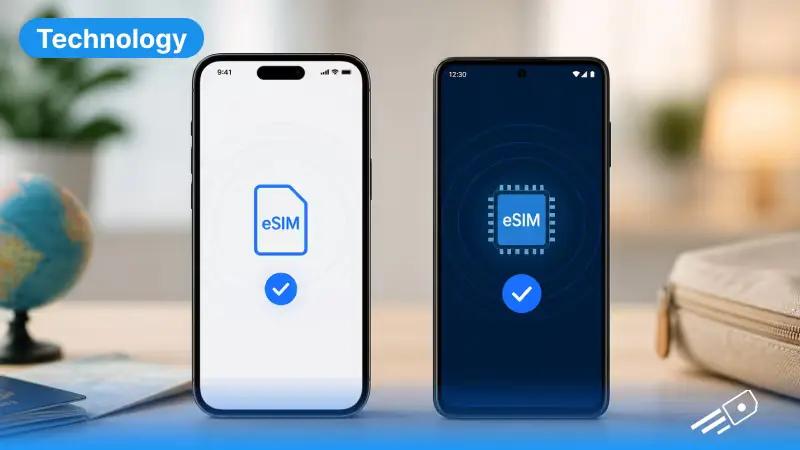
You've purchased your eSIM plan, you've got a QR code sitting in your inbox, and now you're staring at your phone wondering what to do next. Don't worry - activating an eSIM is genuinely one of the simpler things you'll do with your phone. Most people are fully connected in under five minutes. This guide walks you through the whole thing - including what to check before you start, how long eSIM activation actually takes, and what to do if it doesn't go to plan.
What Is an eSIM, Exactly?
An eSIM is a digital SIM card built directly into your phone's hardware. Unlike the small plastic card you'd normally slot into a tray on the side of your device, an eSIM is embedded into the phone during manufacturing and never needs to be physically inserted or removed.
New to the tech? For a more in-depth information, check our full detailed guide on what is an eSIM and how they can benefit you during your travels.
Three Things to Check Before Setting Up an eSIM

Before starting, take two minutes to confirm these before you scan anything.
- Your phone supports eSIM
Not every device does, and even some that technically support it may be carrier-locked, which blocks third-party profiles entirely.
On iPhone, go to Settings > General > About and look for "Available SIM."
On Android, go to Settings > Connections > SIM Manager and check for an "Add eSIM" option.
If neither appears, your device may not be compatible. A full breakdown of eSIM compatible phones is worth checking before you go further.
- Your device is carrier-unlocked
A locked phone, meaning one tied to a specific network from when you bought it, will reject eSIM profiles from other providers. Contact your original carrier to request an unlock if needed. It's usually free once you're out of contract.
- You're on stable Wi-Fi
eSIM installation needs an internet connection at the point of activation. A weak or unstable signal can cause the download to fail and waste a single-use QR code in the process. Connect to solid Wi-Fi before you do anything else.
Note: Most eSIM QR codes are single-use. Once scanned, they can't be used again on a different device. If you need to reinstall, contact your provider for a replacement code before attempting anything.
How to Activate eSIM on iPhone

Apple makes the eSIM setup process pretty clean. Here's exactly how to activate eSIM on iPhone:
Step 1 — Open Settings
- Go to Settings > Cellular (or "Mobile Data" depending on your region).
Step 2 — Tap "Add eSIM”
- You'll see this option listed under your current SIM. Tap it.
Step 3 — Scan your QR code
- Select the “Use QR Code” from the list of options that pops up and scan the code using the scanner.
Step 4 — Confirm the installation
- Follow the on-screen prompts. You'll be asked to label the new line - something like "Travel" or "Work" works fine. Tap through until installation completes.
Step 5 — Set it as your data line
- Go to Settings > Cellular > Cellular Data and select your new eSIM as the active data line. This step is easy to forget and is the number one reason people think their eSIM isn't working.
Step 6 — Enable data roaming
- If you're using the eSIM abroad, go to Settings > Cellular > [your eSIM line] > Data Roaming and toggle it on. Without this, you'll have signal but no actual data, which is confusing and frustrating in equal measure.
Step 7 — Toggle airplane mode
- Turn airplane mode on, wait about 15 seconds, then turn it off. This forces your iPhone to re-register on the network and usually completes the activation cleanly.
Quick tip: If iMessage or FaceTime isn't picking up your new eSIM number after setup, go to Settings > Messages > Send & Receive and toggle iMessage off and back on. That usually sorts it within a minute.
For a deeper look at how your eSIM interacts with mobile data on Apple devices, the data usage on iPhone guide is worth a read - especially if you're travelling and want to keep tabs on consumption.
How to Activate eSIM on Android
.jpg)
The Android process is just as straightforward, though the menu paths vary slightly depending on your manufacturer. Here's how to activate eSIM on Android that works across Samsung, Google Pixel, and most other Android devices:
Step 1 — Open Settings
- Head to Settings > Connections > SIM Manager (Samsung) or Settings > Network & Internet > SIMs (Google Pixel and most others).
Step 2 — Click "Add eSIM"
- Depending on your device, look for a button that says anything along the lines of “add eSIM”, “add mobile plan” or a “+” icon.
Step 3 — Scan the QR code
- From the option that pops up, select the QR code scan option and point your camera at the code sent by your provider. Some even let you enter an activation code manually.
Step 4 — Get the eSIM profile
- Do make sure you have a stable connection first and wait for your phone to download an install the eSIM profile. This process usually takes around 30-60 seconds.
Step 5 — Set as preferred data SIM
- As soon as the installation is done, go back to SIM Manager again and set the new eSIM as your preferred data line.
Step 6 — Enable data roaming
- After, go to Settings > Connections > Mobile Networks > Data Roaming and make sure it’s switched on. Only after turning it on can you use it internationally.
Step 7 — Restart your device
- With Android, we recommend doing a full restart after the installation is complete so that it registers the new profile.
Note on Samsung: If you're on a Galaxy device and can't find the "Add eSIM" option, try checking Settings > Connections > SIM Manager > Add - it's sometimes a level deeper than other devices.
How Long Does an eSIM Take to Activate?
Activating an eSIM normally takes less than two minutes - from the process of scanning QR to having a live data connection (this is assuming the WiFi is stable).
Here are a few scenarios where it takes longer:
Weak Wi-Fi during setup - the profile download can start to stall or just fail completely. Move to a stronger connection and retry if it happens.
Provider-side activation windows - some eSIM plans activate on a specific start date. Check your confirmation email before assuming something's wrong.
Network registration in a new country - toggle airplane mode on and off to speed this up after landing.
Busy networks - in crowded locations like airports or festival grounds, registration can take a few extra minutes. Give it five minutes before troubleshooting.
Travelling soon? eSIM Cards offer instant-activation plans for major destinations across Europe and the world, with eSIM UK, USA, Europe, and so on, which operate on major networks. Buy before you fly, scan when you land, and skip the airport SIM queue entirely.
What to Do If Your eSIM Isn't Activating
So you've followed every step and it's still not connecting. Run through this checklist before contacting support:
- eSIM profile visible in cellular settings?
- eSIM line turned on?
- eSIM set as the active data line?
- Data roaming enabled on that line?
- Airplane mode toggled on and off?
- Full device restart done?
- QR code scanned successfully without errors?

If all of these check out but you're still stuck, the issue is likely a carrier-side activation problem or a profile that didn't install properly. The full eSIM not working guide covers every common cause in detail and is worth going checking.
Activating eSIM Takes Minutes. With eSIM Cards, Even Less
That's genuinely all there is to it. A QR code, a stable Wi-Fi connection, and a couple of settings tweaks - and you're online. Once you know how to activate eSIM, the whole process becomes second nature. And with eSIM Cards - you're getting instant activation, major network coverage, and the kind of setup that works before your plane even touches down.
FAQs
Q1. How long does an eSIM take to activate?
Ans. In most cases, under two minutes from scanning the QR code to a live connection. The profile download takes 30-60 seconds on stable Wi-Fi, with network registration adding another minute.
Q2. How do I know if my phone supports eSIM?
Ans.The simplest way to know if you have an eSIM compatible phone is to dial *#06# using your phone’s dialer. If an EID number pops up, your device is eSIM compatible.
Remember, if an EID number does come up, your device also needs to be carrier-unlocked - a locked phone will reject third-party eSIM profiles even if the hardware supports it.
Q3. How to activate an eSIM without Wi-Fi?
Ans. Technically some activations can complete over mobile data, but it's not recommended. A stable Wi-Fi connection gives you the most reliable download and prevents installation from stalling mid-process. If Wi-Fi isn't available, make sure your mobile signal is strong before attempting to scan.
Q4. Why is my eSIM activated but not connecting to data?
Ans. Almost always one of two things - data roaming is switched off, or your eSIM isn't set as the active data line.
On iPhone, check Settings > Cellular > [your eSIM line] > Data Roaming, and Settings > Cellular > Cellular Data to confirm the right line is selected.
On Android, check Settings > Connections > Mobile Networks > Data Roaming, and SIM Manager to confirm your eSIM is the preferred data SIM.