
 Business Plans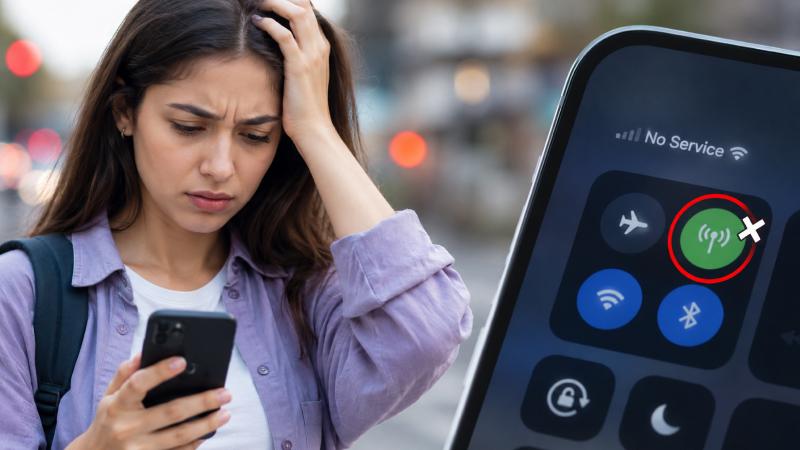

Data struggles are a headache and annoying when they hinder day-to-day activities. But can you imagine travelling in a new country and suddenly it stops working? Now you’re stuck wondering “why is my cellular data not working?” - frantically searching for the nearest WiFi spots and SIM kiosks. Don’t worry, though, because you have come to the right place. Our guide will walk you through every common reason - from cellular data not working to mobile network not available.
What Is Cellular Data?
Ever wondered what is cellular data and how is it different from other connectivity methods? Cellular data is basically mobile internet, which is the connection your phone gets directly from nearby network towers. It can be with the used of either an eSIM or a SIM and a data plan attached to it.
For a deeper look at how mobile data works, the mobile data guide is worth a read alongside this one.
Common Reasons for Cellular Data Not Working: Device Settings
This is where most data problem cases actually start. The problem isn't the network or the plan but the phone quietly working against itself. Start here before anything else.
Reason 1: Cellular Data Is Simply Switched Off

This sounds obvious, we know (like duh?!) but this is one of the most common causes of mobile data not working. If it accidentally got toggled off but you never knew, you’re going to waste time trying to fix it instead of simply checking the control center of your phone.
To fix:
- On iPhone: Settings > Cellular > toggle Cellular Data on
- On Android: Settings > Network & Internet > Mobile Network > toggle Mobile Data on
Reason 2: Airplane Mode Is On

Airplane mode disables all wireless signals on your phone simultaneously - cellular, WiFi, Bluetooth, hotspot - you name it. So, if you have it on or accidentally turned it on, your phone will not be able to connect to an time of network (except for WiFi but you need to manually turn it on again).
To fix: Turn airplane mode fully off by going to Settings > Airplane Mode and make sure it's completely disabled.
Reason 3: The Wrong SIM Is Set as Your Data Line

If you're using a dual SIM setup such as a physical SIM and an eSIM simultaneously - your phone might be routing data through the wrong line. This is a classic reason for Android and iPhone cellular data not working.
The fix:
- On iPhone: Settings > Cellular > Cellular Data > select the correct line
- On Android: Settings > Connections > SIM Manager > set your preferred data SIM
Reason 4: Your iPhone Cellular Data Settings Need Adjusting

Here's one that's specific to iPhone cellular data issues and catches people off guard. iOS lets you control which apps are allowed to use cellular data individually and if mobile data is switched off for a specific app, that app will never load over cellular regardless of your signal strength or plan status.
How to check: Settings > Cellular > scroll down to the app list. Any app with its toggle switched off won't use cellular data
Reason 5: A Software or Carrier Settings Update Is Needed

Outdated software is a genuine cause of cellular data is not working errors. This commonly happens right after major iOS or Android releases when eSIM profiles and network settings sometimes need updating to stay compatible.
The fix:
- Update iOS: Settings > General > Software Update
- Update Android: Settings > Software Update > Download and Install
Update carrier settings on iPhone (this is separate from iOS and easy to miss): Settings > General > About. If a carrier settings update is available, a prompt appears within a few seconds. Tap Update immediately.
Network or Coverage Issue
If it’s not a device settings problem, the issue might be somewhere between your phone and the nearest tower, which needs a different kind of fix entirely.
Reason 6: You're in a Poor Coverage Area

Sometimes, cellular network not available errors don't always mean something is wrong with your phone. It can be cause due to lack of a strong enough signal from a network tower where you're standing. Basements, underground transport, rural areas, and buildings with heavy concrete walls all create dead zones where mobile data either drops entirely or becomes too weak to function.
The fix:
To solve this, all you have to do is literally step outside, moving to a higher floor, or walking a short distance can be enough to pick up a stronger signal. Once you've moved, force your phone to search for a network again by toggling airplane mode on and off.
Note: If you're travelling and seeing "cellular network not available" or "mobile network not available" consistently in a specific country, the issue might not be coverage. It might be that your SIM or eSIM plan doesn't include data for that region. Check your plan details before assuming it's a signal problem.
Reason 7: Data Roaming Is Switched Off

If you’re wondering “my data is not working” only when you’re abroad but it works perfectly at home, data roaming being switched off is almost certainly the reason. Roaming allows your phone to connect to partner networks in other countries. Without it enabled, your phone will show signal (because it's registered on the network) but block all mobile data from actually flowing through.
The fix:
- On iPhone: Settings > Cellular > tap your SIM or eSIM line > turn Data Roaming on
- On Android: Settings > Connections > Mobile Networks > turn Data Roaming on
Plan or SIM Issue
This part catches the travel-specific cases and the plan-related ones where the situations looks fine on the device but the problem is sitting at the account or SIM level
Reason 8: Your Data Plan Has Run Out or Expired

This one doesn't get a settings fix because the issue isn't with your device at all. If your monthly data allowance has been used up, or your prepaid plan has expired, cellular data not working is the expected result.
How to check:
- For postpaid plans: check your carrier's app or website for your current usage
- For prepaid plans: check your confirmation email or provider app for your data balance and expiry date
- For eSIM plans: log into your provider's platform or app to see your remaining data
If you've run out of travel eSIM and need to replace it quickly, buy eSIM plans from eSIM Cards that can be activated within minutes with a QR scan.
Reason 9: Your Network Settings Have Become Corrupted

If none of the above has resolved the issue and you’re still left wondering “why is my data not working” - the problem may be in your phone's stored network configuration. This can happen after software updates, after travel across multiple countries, or after switching between SIMs. Resetting network settings clears all saved Wi-Fi passwords, Bluetooth pairings, and cellular configurations, essentially giving your phone a clean slate on connectivity.
- On iPhone: Settings > General > Transfer or Reset iPhone > Reset > Reset Network Settings
- On Android: Settings > General Management > Reset > Reset Network Settings > Confirm
If you’re on an eSIM data plan, there might be other common reasons related to eSIM not mentioned here. Check our eSIM not working guide which covers carrier-side issues, profile reinstallation, and when to contact your provider directly.
Why Your Data Might Not Be Working and How to Prevent It Next Time
There's a pattern to the question “why is my data not working” and most of them happen either immediately after a software update, immediately after travel, or immediately after switching SIMs or plans. The prevention is mostly about being deliberate with settings rather than assuming everything carries over automatically.
If you travel regularly, a Travel eSIM from eSIM Cards removes several of the most common causes entirely. Instant activation means no waiting for a plan to kick in, major network coverage means fewer dead zones, and hotspot support means even if one device plays up, you've got a backup.
Browse available plans before your next trip and sort connectivity before you land because the worst time to be troubleshooting “mobile data not working” is standing in arrivals with no maps and no way to reach anyone.
FAQs
Q1. What is cellular data and how is it different from Wi-Fi?
Ans. Cellular data is the mobile internet connection your phone gets from network towers using your SIM or eSIM plan. Wi-Fi connects your device to the internet through a router via a fixed broadband line. The key difference is portability - cellular data travels with you wherever there's network coverage, while Wi-Fi only works within range of a specific router.
Q2. Why does my iPhone say "cellular network not available"?
Ans. This error usually means your iPhone can't find or connect to a network tower. Common causes include being in a low-coverage area a carrier outage in your area, or your SIM/eSIM not being correctly activated.
Q3. Why is my cellular data not working even though I have signal bars?
Ans. Signal bars indicate your phone is registered on a network, but they don't necessarily mean data is flowing. The most common culprits when you have signal but no data are: data roaming switched off (if abroad), your data plan being used up, the wrong SIM set as the data line. Check each of these before assuming a deeper technical issue.
Q4. Will resetting network settings delete anything important?
Ans. Resetting network settings removes all saved Wi-Fi passwords, Bluetooth connections, and VPN configurations, but it doesn't delete photos, apps, messages, or any personal data.