Easy Way to Check Data Usage on an iPhone and Reduce Phone Bills
March 11, 2026

Ever saw your phone bill and wondered where all your data is going? Managing data usage on an iPhone can feel confusing at first - especially if you have a bunch of apps constantly syncing in the background. Add streaming content or using location services to this and your data will be over before you can even send a quick text to your bestie.
But don’t worry, your iPhone gives several ways to check data usage and monitor the apps consuming the most internet data.
How to Check Data Usage on iPhone
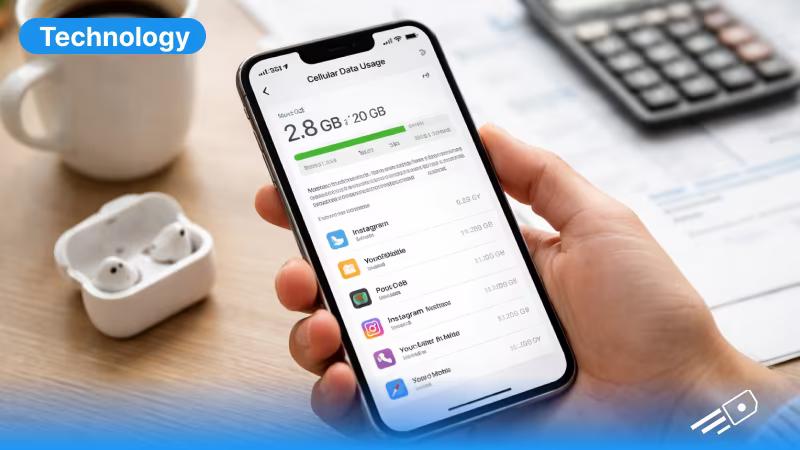
The easiest way to check data usage on an iPhone is through the settings. Follow these steps to check:
- Open Settings
- Tap Cellular or Mobile Data
- Then scroll down and click “See All”
You’ll see two key sections here:
- Current Period - the total mobile data used
- App-by-app breakdown - which apps are consuming data
This is one of the fastest ways to check data usage and see which apps are using your internet connection the most.
Reset Your Data Statistics
Wondering “how to check my data usage accurately”? The current period will only show the data usage from when you first reset it. iPhone does not automatically reset data usage each billing cycle, so you have to reset it manually if you want accurate statistics.
To track it properly, follow these steps:
- Go to Settings → Cellular
- Scroll down
- Tap Reset Statistics
Resetting this right at the start of your billing month can help you accurately check your data usage over time.
How to Reduce Data Usage on an iPhone
If you notice your data usage is increasing quickly all of a sudden, try to make these small adjustments.
- Disable Background App Refresh
Certain apps can use data even when you’re not using them.
Go to:
Settings → General → Background App Refresh
And turn it off for the apps that you don’t use regularly or the ones that don’t need constant updates.
- Turn Off Wi-Fi Assist
When WiFi assist is turned on, it may automatically switch to cellular network when the WiFi network becomes weak - chewing up your data when suspicion.
Here’s how you can disable it:
Settings → Cellular → Wi-Fi Assist
This helps prevent unexpected cellular data usage.
- Limit Streaming Quality
Streaming apps are the main culprit for consuming large amounts of data. Try lowering video quality in apps like YouTuvbe or Netflix - it can significantly reduce usage by a lot if you frequently stream.
- Buy eSIM Data Plans
Alternatively, you can buy the cheapest eSIM plan UK from providers like eSIM Cards if you’re planning on staying in the UK or travelling abroad. They come with zero roaming charges and affordable prices and even unlimited packages - perfect for endless browsing,
How to Check Hotspot Data Usage on an iPhone
Your hotspot iPhone feature allows you to share internet with other devices within seconds. But this means your total data usage will increase by a large margin.
To enable hotspot:
- Open Settings
- Tap Personal Hotspot
- Turn on Allow Others to Join
Once it’s turned on, you can connect other devices like laptops, tablets and other phones and will be able to get online using your iPhone’s internet.
Just remember that every online activity you do on other devices will count towards the total cellular data usage on your iPhone.
If you frequently share internet while travelling or out with friends, consider choosing a mobile hotspot eSIM plan for better flexibility.
How to Check Wi-Fi Data Usage on an iPhone
Apple does not directly display WiFi data usage the same way it shows cellular data.
However, you can still monitor activity by:
- checking router statistics
- reviewing app activity
- using third-party monitoring apps
But most people will focus on cellular data since that’s the main data for most Android iOS devices. You can grab a travel eSIM if you plan on sharing data with your friends when travelling. Just be sure to check eSIM compatibility and confirm your device is eSIM compatible before any purchase is made.
How to Transfer Data from iPhone to iPhone
Planning on sharing data between your iPhone and other devices? You can set up iPhone hotspot and transfer internet data easily. Here’s how:
- Go to settings and click on “Personal Hotspot”
- Enable Personal Hotspot
- Let the other device connect via Wi-Fi
- Enter the hotspot password
This is especially useful when:
- travelling with friends
- connecting another device without Wi-Fi
- sharing internet temporarily
How to Fix Data Usage Problems on an iPhone
Sometimes your iPhone may consume data without you knowing and unnecessarily. If you think that’s happening, try these solutions:
- Reset Network Settings
Go to:
Settings → General → Transfer or Reset iPhone → Reset → Network Settings
This often fixes hidden connectivity issues.
- Check Data Roaming
If you're travelling, data roaming can quickly increase usage.
You can disable it here:
Settings → Cellular → Cellular Data Options
- Update Your iPhone
Keeping your current iPhone updated ensures the system manages network usage properly.
Go to:
Settings → General → Software Update
Managing Data with eSIM for iPhone
Many users are now switching to eSIM instead of traditional SIM cards as they’re usually hassle-free and you can install multiple profiles.
An eSIM allows you to:
- activate mobile data digitally
- switch plans easily
- manage connectivity while travelling

If you’re new to eSIM technology, check this guide on how to activate eSIM on iPhone. Providers like eSIM Cards offer affordable eSIM data plans so that you can easily manage your mobile data without the need for physical cards.
Keep iPhone Data Usage in Check with These Proven Tips
Understanding data usage on an iPhone becomes much easier once you know where to look and which settings you have to adjust.
Remember to regularly check your data usage, limit background activity and manage hotspot settings. This way, you can keep your internet usage under control.
If you want more flexibility, you can switch to eSIM Cards, which makes data more affordable with zero roaming during international trips.
FAQs
Q1. How do I check data usage on iPhone?
Ans. You can check it by going to Settings → Cellular → Cellular Data Usage, where your iPhone shows total usage and app-by-app data consumption.
Q2. Why is my iPhone using so much data?
Ans. Your iPhone may be using so much data because of streaming in full 4K, background apps keep refreshing, hotspot use or automatic downloads in the background.
Q3. Does hotspot use count as data?
Ans. Yes, when you enable hotspot iPhone, any device that’s connected to it will use your mobile data to access the internet.
Q4. Can I limit data usage on an iPhone?
Ans. Yes. You can disable background app refresh, restrict cellular access for apps, and lower streaming quality.
Q5. Does eSIM affect data usage?
Ans. No. An eSIM for iPhone works the same as a physical SIM but allows easier switching between networks and data plans.